
In this guide, we walk through the complete process of setting up a MISP server using a Docker container. From the initial deployment to performing the first login and verifying access to the web interface, you will learn how to efficiently get your MISP instance up and running.
• Ubuntu 24
• Ubuntu 26
Copyright © 2018-2026 by Techexpert.tips.
All rights reserved. No part of this publication may be reproduced, distributed, or transmitted in any form or by any means without the prior written permission of the publisher.
Equipment list
Here you can find the list of equipment used to create this tutorial.
This link will also show the software list used to create this tutorial.
Tutorial Docker - Install MISP using Containers
Install the required packages.
Install Docker and Docker Compose.
Start the Docker service.
Enable the Docker service to start automatically.
Clone the MISP repositoy.
Copy the template and configure the environment file.
Change the following items from the configuration file:
Change the admin account, password, and IP address to match your environment.
Create the MISP container using Docker Compose.
Here is the command output.
Open your browser and access the web interface on port 80.
Replace the IP address with the address of the computer running the container.
Log in to the MISP web interface using the username and password configured.
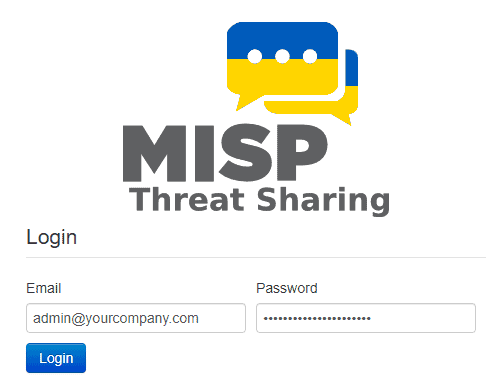
After a successful login, you will be redirected to the MISP dashboard.
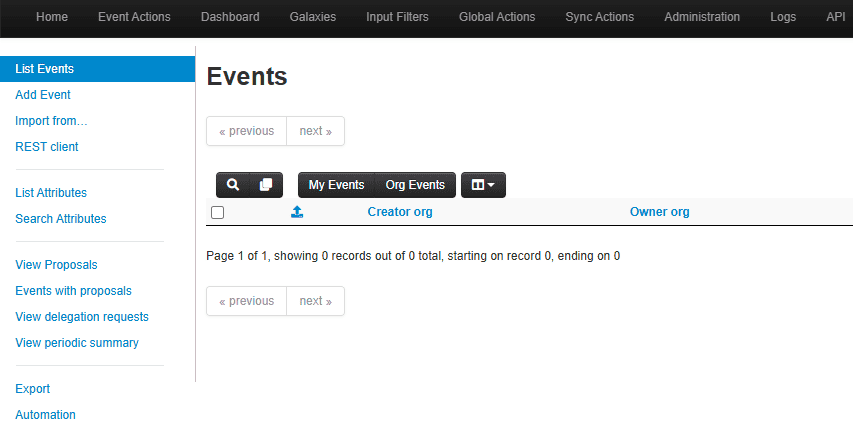
Congratulations! You have successfully installed MISP in a Docker container.
Tutorial MISP - Configuring MISP IOC Feeds
Access the following menu.
Click on the button to load the default feeds.
Enable the desired list of IOC Feeds.
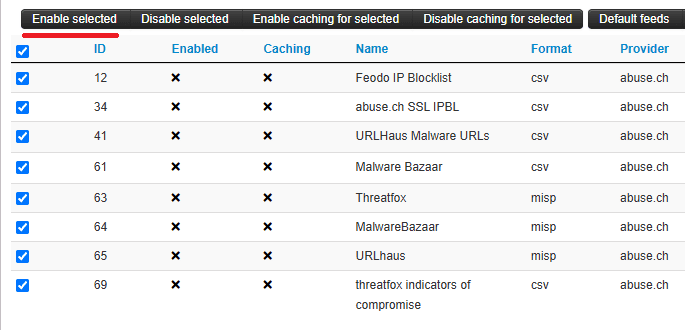
Click on the button to download the selected feeds.

Downloading the feeds can take a significant amount of time.
To search for an IOC, navigate to the following menu.
Enter an attribute and select the filter options.
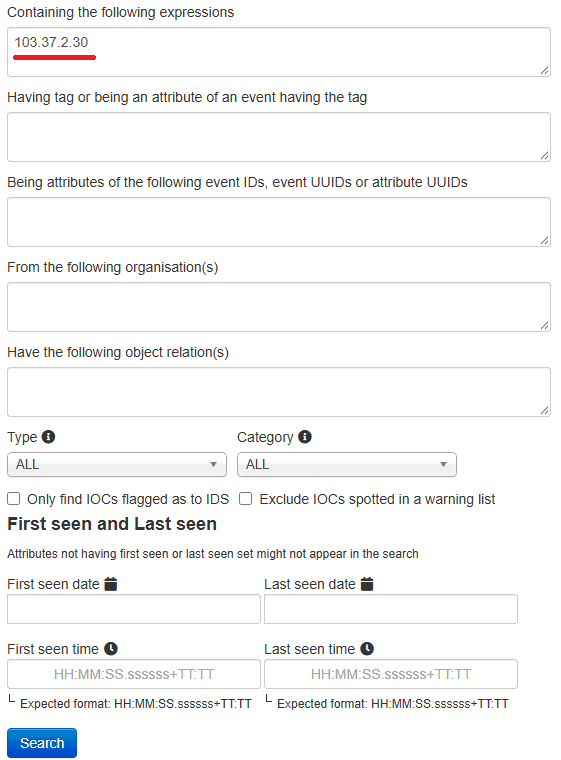
The search results will display events containing this IOC.

You can even download the command to deny or block access to this specific IOC directly from MISP.

Congratulations! You are now able to search for IOCs in your MISP installation.