
In this guide, we walk through the complete process of setting up a Splunk Enterprise server using a Docker container and a YAML file. From the initial deployment to performing the first login and verifying access to the web interface, you will learn how to efficiently get your Splunk instance up and running.
• Ubuntu 22
• Ubuntu 24
Copyright © 2018-2026 by Techexpert.tips.
All rights reserved. No part of this publication may be reproduced, distributed, or transmitted in any form or by any means without the prior written permission of the publisher.
Tutorial Docker - Install Splunk using Containers
Install the required packages.
Install Docker and Docker Compose.
Start the Docker service.
Enable the Docker service to start automatically.
Create the directory to store project files.
Create the YAML file containing the Splunk container settings.
Here is the Docker Compose file content.
The Splunk administrator password is defined via environment variables. For this tutorial, we set a default password, but it is essential to use a strong, unique string to comply with Splunk's security requirements during the initial setup.
In our example, we define volumes to ensure data persistence. By mapping it, all configurations, logs, and indexed data are preserved even if the container is restarted or removed.
A dedicated bridge network is created to isolate the traffic. The splunk-network ensures that the Splunk container operates in a controlled environment, allowing for secure communication between services while keeping it separated from other Docker networks.
We also expose multiple ports to handle different data streams. In addition to the Web UI on port 8000, we configured several UDP ports to receive syslog data. This setup allows the server to act as a central log collector for various network devices.
Create the Splunk container using Docker Compose.
Here is the command output.
Wait a few minutes and check if the container is running.
Here is the command output.
Check if the container has finished loading.
Here is the command output.
Open your browser and access the web interface on port 8000.
Replace the IP address with the address of the computer running the container.
Log in to the Splunk web interface using the admin username and the password configured in the YAML file.

After a successful login, you will be redirected to the Splunk dashboard.
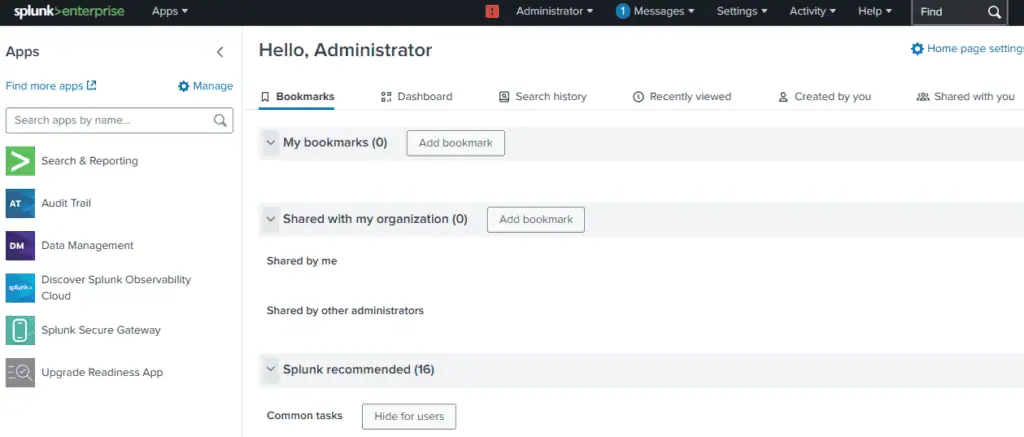
Congratulations! You have successfully installed Splunk in a Docker container.